
Photo App - AI Photo Enhancer
HyperSoft AI - Apps LabArt & Design
4.5318.00 Reviews
- Version
- 1.2.0.5
- Installs
- 10.00M
- Age Rating
- Everyone 10+
Screenshots
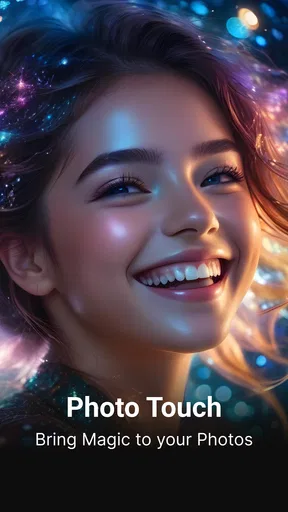
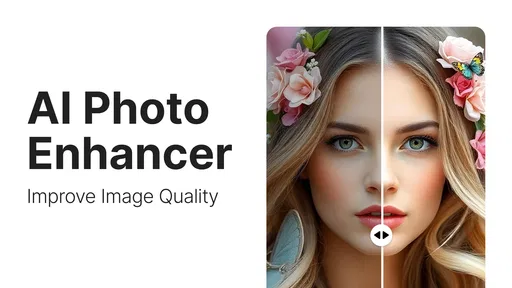
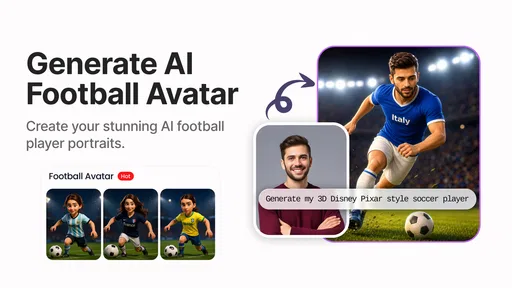
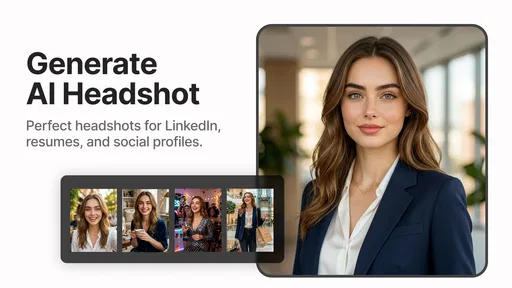
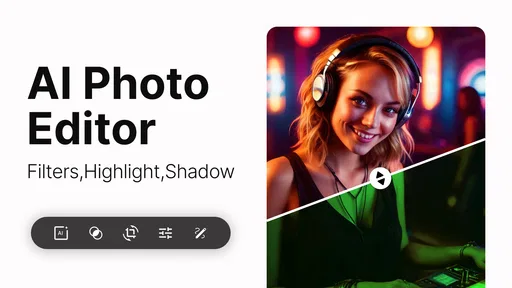
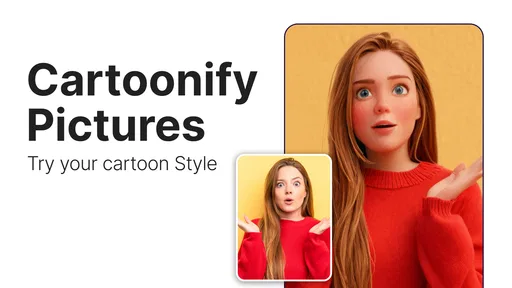
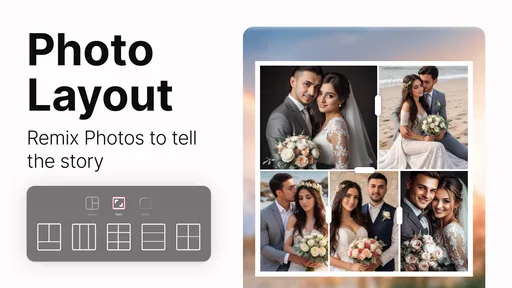
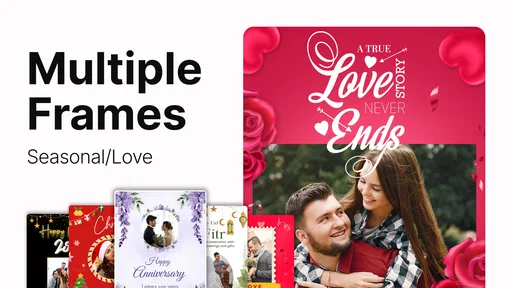
Our Review of Photo App - AI Photo Enhancer
 Analysis by Appyee
I tested Photo App - AI Photo Enhancer as a practical editing tool rather than treating it as a one-tap miracle. Its main appeal is easy to understand: it uses AI-focused enhancement to make older, soft, or slightly blurred pictures look cleaner. That makes it especially interesting for a household where several people may want to rescue family photos without learning a full desktop editor.
The app belongs to the Art & Design category and is developed by HyperSoft AI - Apps Lab. It is free to install, with optional in-app purchases ranging from $0.99 to $29.99 per item. In everyday use, that means you can try the basic experience before deciding whether the extra options are worth paying for. I like that approach for a photo utility, because the value depends heavily on the kinds of images you need to repair.
Its audience is broad, but not unlimited. Someone who wants a quick improvement for a social post, a scanned family picture, or a portrait that came out a little soft will probably understand the attraction immediately. Someone expecting a damaged photograph to become perfectly sharp, or looking for detailed manual retouching, should keep expectations more realistic.
How it fits into a shared household
When a phone is shared, I find it helps to agree on a simple handoff: each person works from a copy and leaves the source photo alone. That keeps a quick enhancement from turning into a debate over which file is the family’s original, and it makes the next section’s practical boundaries easier to apply.
One phone, several kinds of photo projects
A realistic shared-device situation is a family sorting through old pictures after finding a box of prints or a folder of low-quality phone images. One person may want to improve a portrait, another may be interested in restoring a faded memory, and someone else may simply want a clearer version for messaging. A focused enhancer is convenient here because it avoids the long learning curve of a traditional editor.
I found the strongest use case to be “good enough to share” improvement. If a picture is recognizable but dull, noisy, or mildly blurred, an AI treatment can make it feel more presentable without requiring the user to understand curves, masks, sharpening thresholds, or color channels. That is a meaningful advantage over many conventional editing apps, where the first challenge is figuring out which tool to touch.
There is also a useful distinction between restoring a picture and redesigning it. Photo App - AI Photo Enhancer is most appealing when the original image already contains the memory you want to preserve. It is less suitable when you want to compose a collage, draw over a photo, build a poster, or make precise changes to individual objects. In those cases, a broader editor gives you more control.
For a shared phone, I would create a simple routine: keep the original image untouched, enhance a copy, compare both versions, and only then decide which one to send or print. This matters because AI enhancement can improve clarity while also changing tiny facial details, hair texture, or lettering. The result may look more polished, but it is still an interpretation of the source.
A practical evening workflow
Imagine finding an old portrait that looks soft after being photographed from a printed picture. I would first crop away the table, frame, or surrounding background, then run the enhancement on the most important part of the image. Afterward, I would inspect the eyes, mouth, hairline, and any small text rather than judging the whole picture at a glance.
This is one of the less obvious habits that makes the app more useful: check important details at full size before trusting the preview. A face can appear impressively clear when viewed small, while the enlarged version reveals artificial edges or invented-looking texture. If the result feels too aggressive, the original may actually be the better choice for preserving authenticity.
I would also avoid processing a photo repeatedly. Saving an enhanced result and feeding that new version back into the app can exaggerate halos and smooth away natural detail. The safer workflow is to return to the untouched original whenever you want to try again. That single habit prevents a lot of quality loss in AI-based editing.
Keeping household projects coordinated
Shared use becomes easier when everyone agrees on what the finished image is for. A picture intended for a small message attachment does not need the same treatment as one being printed or used in a family archive. For casual sharing, a visibly cleaner face may be enough. For preservation, I would favor the least dramatic improvement and retain the original alongside it.
Because this is an app used on a device rather than a family project-management system, coordination still depends on the people using it. I would label saved copies clearly, especially if several relatives are reviewing the same image. Names such as “original,” “light enhancement,” and “share version” are more helpful than allowing multiple files with indistinguishable names to accumulate.
That approach also helps avoid arguments about which version is “correct.” An enhanced file can be treated as a presentation copy, while the untouched scan remains the reference. This is particularly important for old family photos, where a technically sharper result is not automatically a more faithful one.
Setup boundaries, trust, and everyday control
I would treat trust as part of the editing routine, not as an afterthought: ask before changing someone else’s portrait, check before sharing the result, and keep purchase decisions with the device’s owner. Those small habits give everyone more control without making a straightforward photo task feel complicated.
What to decide before handing over the phone
Before another person uses the app on a shared device, I would explain the basic boundary: it is for improving pictures, not for guaranteeing perfect restoration. That short conversation is more useful than promising that every blurred face will become clear. It also reduces disappointment when the source image is too small, heavily damaged, or missing the detail needed for a convincing result.
I would supervise the first few edits with a child or younger relative, not because the app is difficult, but because photo enhancement can change the appearance of people. The content rating is Everyone 10+, so it is positioned for a general audience with an age context above young children. In a household, that still leaves room for ordinary adult judgment about which images are appropriate to edit or share.
There is a difference between using the tool on your own photos and processing somebody else’s picture. A family member may be comfortable having an old portrait improved, while a friend or colleague may not want their appearance altered. I would make consent part of the workflow, especially when the edited result is going to be posted publicly rather than kept for personal use.
The app’s free entry point is convenient, but shared use also calls for attention at the purchase stage. Optional items cost from $0.99 to $29.99 each, so I would not let a child or guest explore payment screens without an adult present. The practical rule is simple: test the free experience first, decide what problem you are trying to solve, and only then consider whether a paid item offers meaningful value for that particular project.
Account boundaries and device habits
I would not assume that installing a photo enhancer creates separate family spaces or automatically organizes each person’s work. On a shared phone, the safest approach is to keep personal images in clearly named folders and to review the final file before sending it. If the device belongs to one person, other users should avoid changing or deleting originals simply because an enhanced copy looks better.
For household coordination, a small written agreement works well: originals stay untouched, edited files receive a new name, and nobody shares another person’s photo without checking first. These are not glamorous features, but they solve the problems that arise most often when a helpful editing app is used by several people.
I also recommend testing one representative image before processing a whole collection. Old photos can vary dramatically: one may respond nicely, another may show strange edges, and a third may be too damaged to benefit. A trial image reveals whether the app’s style suits the family’s material without wasting time or creating a confusing pile of near-duplicates.
Age, trust, and realistic expectations
The Everyone 10+ rating makes the app approachable for older children and teens, but age suitability is not the same as responsible sharing. A teenager may know how to improve a portrait yet still need guidance about posting altered images of classmates or relatives. I would frame the app as a creative and restorative tool, not as permission to change someone’s appearance without their knowledge.
Trust also matters with sentimental images. If a grandparent gives a child a photograph to enhance, the child should understand that the original is valuable even if it looks faded or imperfect. Keeping both versions protects the history of the image and leaves room for another editing method later.
For younger users, I would keep the activity focused: choose a copy, make one or two versions, compare them, and stop. Endless attempts can make the process feel like a game of chasing a perfect face, when the real goal is usually to make a meaningful photo easier to see. In my view, the best household use encourages care for the source material rather than replacing it.
What the app does well and where alternatives win
My view is that this enhancer earns its place when speed and ease matter more than precise local adjustments, while a manual editor is the better choice for retouching a specific detail or preparing an archival image. The useful question is not which tool is universally best, but what the photo needs next—and the following comparison helps make that choice concrete.
Its advantage over traditional editors
Compared with a standard editor, Photo App - AI Photo Enhancer is easier to approach when the user knows the desired outcome but not the editing technique. You do not need to learn which combination of contrast, clarity, noise reduction, and sharpening might help an old image. That makes the app a good fit for a relative who wants a result rather than a lesson in image processing.
The AI emphasis is also useful for quick decisions. Instead of spending several minutes adjusting sliders and then wondering whether the picture is actually better, you can judge an enhanced version against the original. This is especially practical when preparing a photo for a family chat, a small profile image, or a casual digital album.
Its popularity suggests that this straightforward purpose resonates with many users: the app has a 4.5 average from around 82 thousand ratings and more than 10 million installs. Those figures do not guarantee that every image will improve, but they do indicate that the simple enhancement concept has broad appeal.
Why a full editor may still be better
A conventional editor remains the stronger choice when accuracy and control matter more than speed. If I needed to remove a specific object, correct a difficult color cast, straighten a scan, build a layered design, or retouch one small area without affecting the rest, I would choose a tool designed for manual editing. AI enhancement can be efficient, but it is not a substitute for selective control.
I would also choose another option for professional restoration work. A damaged historical photograph may need careful dust removal, reconstruction, color management, and repeated comparison against the source. An automatic enhancer can be a helpful first experiment, but it should not be treated as the final authority when authenticity is important.
The same caution applies to text. If an old sign, document, or handwritten note is blurry, sharpening may make it look more defined without actually recovering the missing letters. I would never use an enhanced image as proof of a word or number unless the original already supports that reading. This is a subtle but important limitation that a quick before-and-after preview can hide.
Getting more consistent results
My preferred workflow starts with the cleanest source available. If you have a scan, use it instead of photographing the print under uneven lighting. If you only have a phone photo, reduce glare and straighten the page before enhancement. AI can improve an imperfect input, but it cannot reliably undo every reflection, motion blur, or missing section.
Crop with purpose. A tight crop can help the main subject receive attention, but cutting too close may remove useful context or make an old portrait feel unnatural. For group photos, I would test the full image and a closer crop separately rather than assuming one treatment will suit every face equally.
Finally, compare at the size where the image will actually be used. A result that looks too artificial on a large screen may be perfectly acceptable as a small message image, while a subtle improvement may disappear in a print. This is a practical trade-off: the “best” version depends on the destination, not only on the editing preview.
Version, access, and who should choose it
The current version is 1.2.0.5, and the app supports Android 7.0 and later. That makes it accessible on many older Android devices, which is useful for households passing a spare phone between relatives. Still, an older phone may make image processing feel less comfortable than a newer one, so I would test the workflow on the actual device rather than assuming the experience will be identical everywhere.
Since the app is free to install, I see little reason to make a purchase decision before trying a few representative photos. Start with one portrait, one group image, and one old print if those are your main needs. If the results consistently match your expectations, the optional purchases may be worth considering; if the app mainly produces stronger-looking but less faithful faces, paying will not solve the underlying mismatch.
I would recommend it to someone who wants a quick, approachable way to improve everyday pictures and old memories. It is particularly suitable for a shared household project where one person has the photos and another person has the patience to sort, compare, and save copies carefully. The low barrier to entry is its clearest strength.
I would skip it if your priority is detailed manual retouching, archival restoration, graphic design, or guaranteed recovery of unreadable text. In those situations, a dedicated editor or professional restoration workflow is a better investment of time. The app can still be used as a quick experiment, but I would not make it the only tool.
For me, the household verdict is positive with one condition: treat the AI result as a helpful version, not as the original truth. Keep untouched files, agree on sharing boundaries, check important details closely, and involve an adult when purchases or sensitive images are involved. Used that way, Photo App - AI Photo Enhancer is a friendly and practical addition to a family phone, especially for turning almost-good photos into images people will actually enjoy looking at.
My recommendation: try it first on copies of ordinary photos, judge the results at their intended size, and use it when convenience matters more than pixel-level control. That is where Photo App - AI Photo Enhancer feels most convincing: not as a replacement for every editor, but as a focused shortcut for making familiar pictures easier to share and appreciate.
Verdict
Strengths of Photo App - AI Photo Enhancer
- One-tap enhancement makes blurry or dull photos look sharper quickly.
- Useful portrait tools can improve facial details and overall image clarity.
- Batch processing helps enhance several photos with less manual effort.
- Simple controls make the app accessible to users with little editing experience.
- Before-and-after previews make it easy to compare results before saving.
Limitations of Photo App - AI Photo Enhancer
- Results may look overly smooth or artificial on some faces and photos.
- High-resolution exports may require a subscription or additional payment.
- Processing can take longer when enhancing large images or multiple files.
- Some features may depend on an internet connection or cloud processing.
- Privacy-conscious users may dislike uploading personal photos for enhancement.
Similar Picks in This Category
View All
Canva: AI Photo & Video Editor
Canva4.8

PENUP – Drawing-sharing SNS
Samsung Electronics Co., Ltd.4.5

Crafto
Kutumb App4.6

Sketchbook
Sketchbook4.1

ibis Paint X
ibis inc.4.5

Adobe Express: AI Photo, Video
Adobe4.6
Frequently Asked Questions
What is Photo App - AI Photo Enhancer, and what can it do?
Photo App - AI Photo Enhancer is designed to improve the appearance of digital images with artificial intelligence. It can typically sharpen blurry details, reduce noise, enhance colors, restore older pictures, and increase perceived resolution. It is useful for portraits, social media posts, scanned photographs, and everyday snapshots, although the final result depends on the original image quality and the selected enhancement tools.
Is Photo App - AI Photo Enhancer free to download and use?
The application may be available to download at no initial cost, but some advanced tools, export options, filters, or unlimited enhancements can require a subscription or one-time purchase. Before confirming payment, check the pricing page, trial conditions, renewal terms, and cancellation instructions in the app store. Free features may also include limitations such as advertisements, watermarks, or restricted daily processing.
Does the app require an internet connection to enhance photos?
Some basic editing functions may work directly on your device, while AI-based enhancement often requires an internet connection because images are processed on remote servers. Availability can depend on the specific feature, device model, and current app version. If you plan to edit photos while traveling or without mobile data, test the required tools in advance and review the app’s offline capabilities.
Are my photos safe when I use Photo App - AI Photo Enhancer?
Before uploading personal images, review the application’s privacy policy and permissions carefully. Pay attention to how photos are transferred, processed, stored, and deleted, especially when using portraits, family pictures, or sensitive documents. Avoid uploading confidential material unless you understand the provider’s practices. It is also wise to use the official store version and keep the application updated.
What kind of photos produce the best enhancement results?
The app usually performs best with reasonably clear images that contain visible subjects, good lighting, and enough original detail. It can improve low-resolution portraits, old photographs, and slightly blurred pictures, but it cannot reliably recreate information that was never captured. Extremely dark, heavily compressed, or severely out-of-focus images may produce artificial-looking textures, halos, or facial details, so compare the result with the original before saving.
